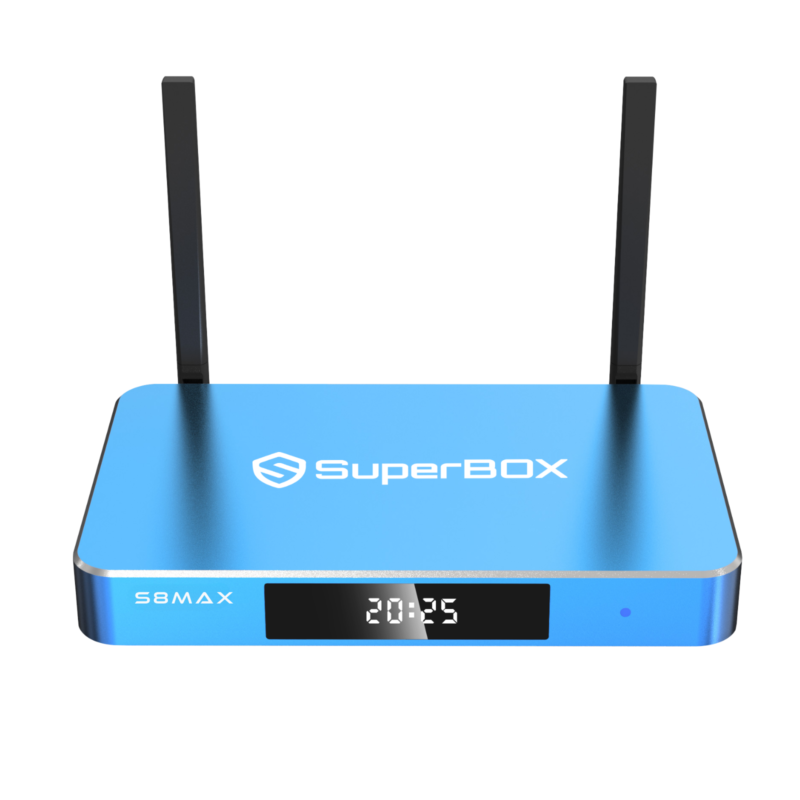

Step 1 – Agree to the Disclaimer Notice – (Press [OK])
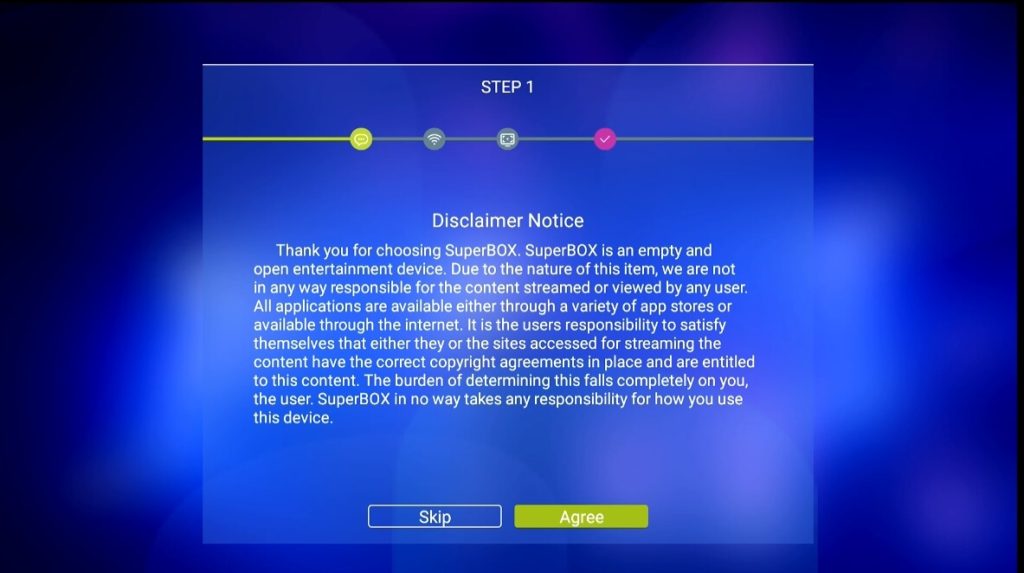
Step 2 – Select your internet connection (Either Ethernet or WiFi)
Step 2A – Ethernet Setup Plug into Router – (Press [OK])
Step 2B – WiFi Setup Select WiFi Network – (Press [OK])
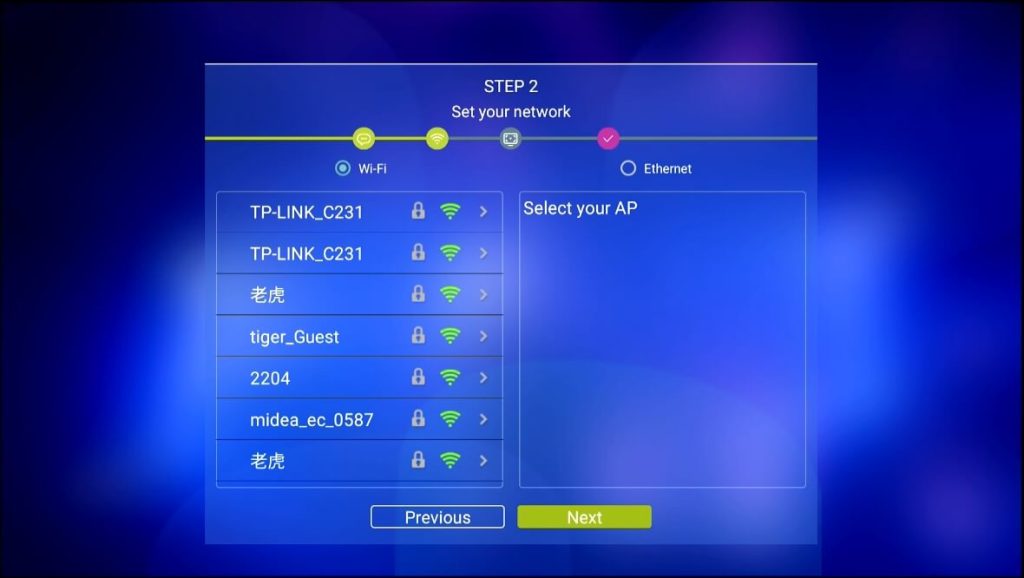
Step 2C – Enter Password (Press [OK] on [Check] to Save)
Step 2D – Arrow to Connect (Press [OK] to Connect)
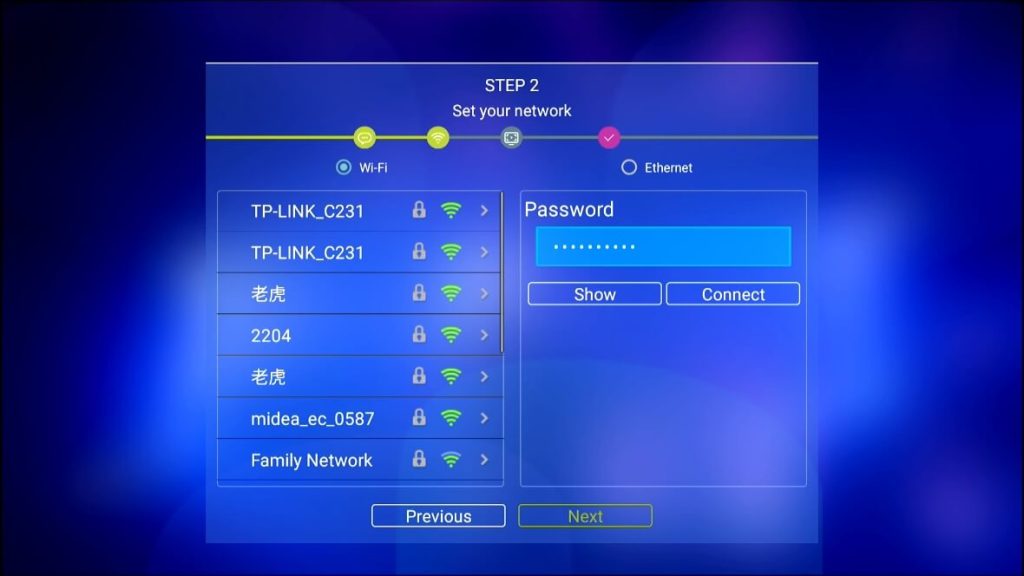
Step 2E – Arrow to [Next] (Press [OK] to Finish
Step 3 – Adjust Screen to fit your TV
(Use UP/DOWN Arrows to Adjust – Press [OK] on Finish)
Step 4 – Pair Bluetooth Remote
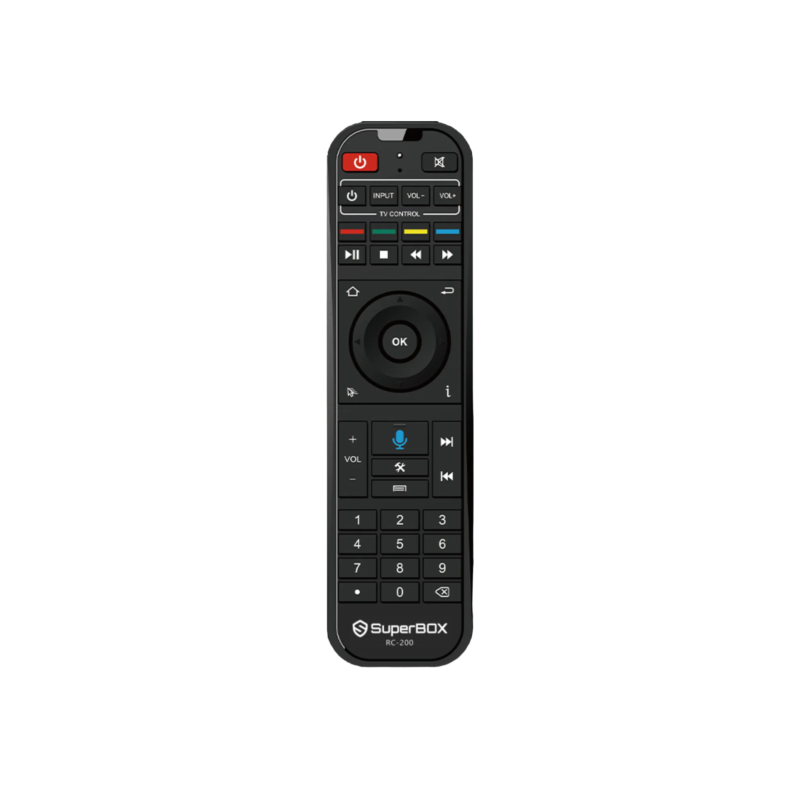
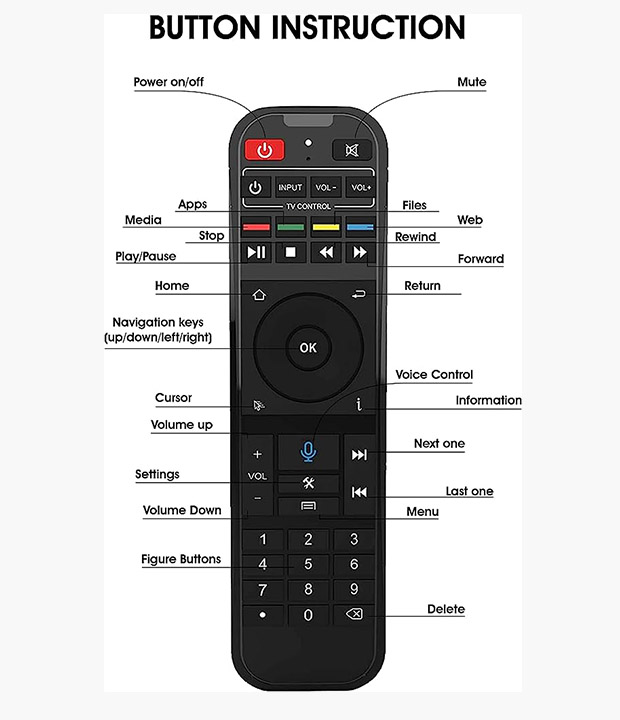
Step 4A – Arrow down to Voice icon or Press the [VOICE CONTROL button on the remote
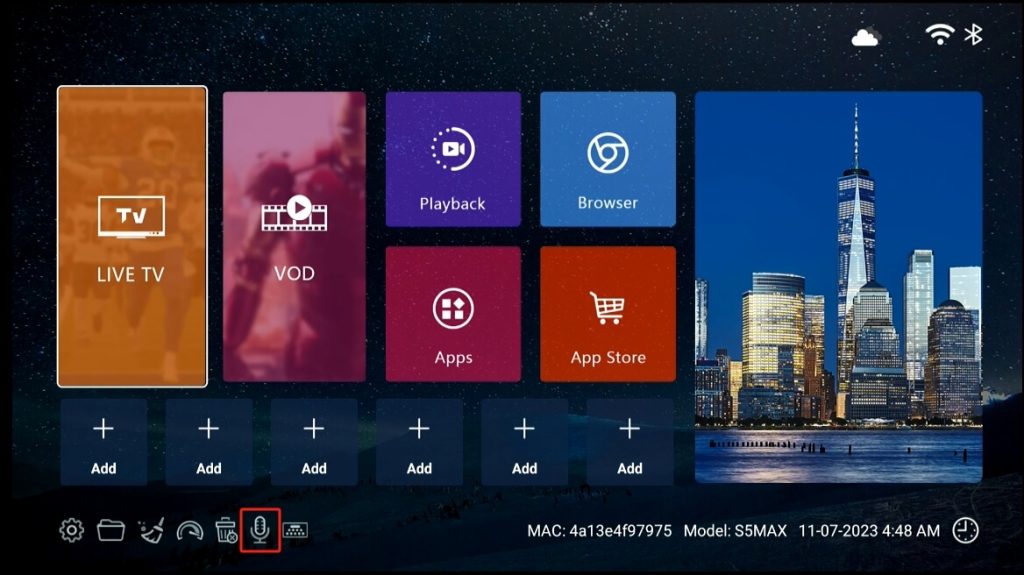
Step 4B – Hold [OK] and [Return] buttons together till the indicator flashes
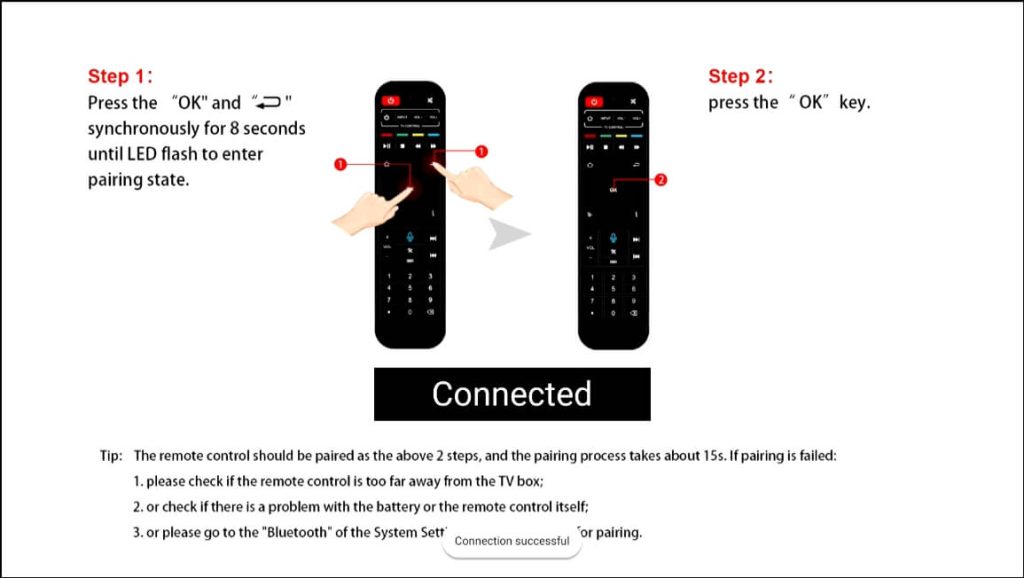
Step 4C – Press [OK] to finish pairing
Now the remote turns into Bluetooth mode and you’re able to use the Voice Command function
When speaking to the remote for the first time, it will pup up the Google Assistant notice, select Sign in or Use Assistant without sign-in
Step 5 – Download & Install the Blue Apps
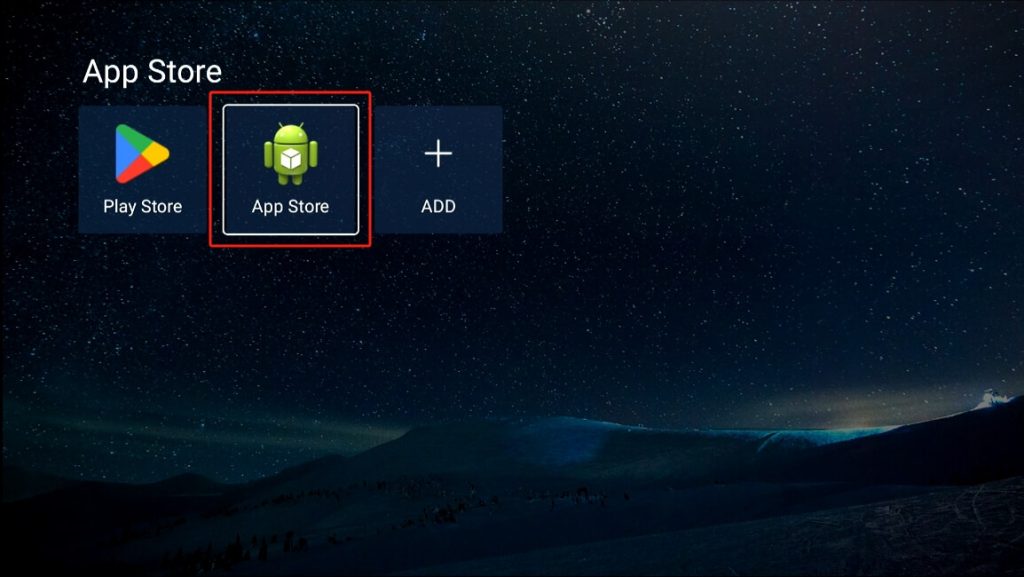
Step 5A – Arrow Over to [ App Store], and wait for a few seconds till the App Store(Not the Play Store) shows up

Step 5B – Click to install the App Store, and go to the downloaded App Store
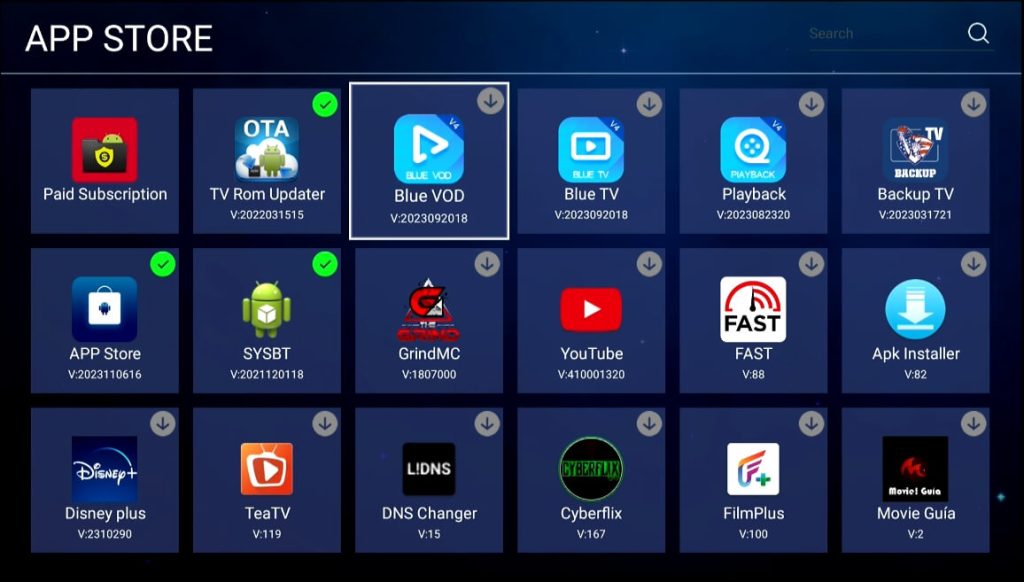
Step 5C – Click Blue TV, Blue VOD, Playback, Backup TV and other apps
you want to install
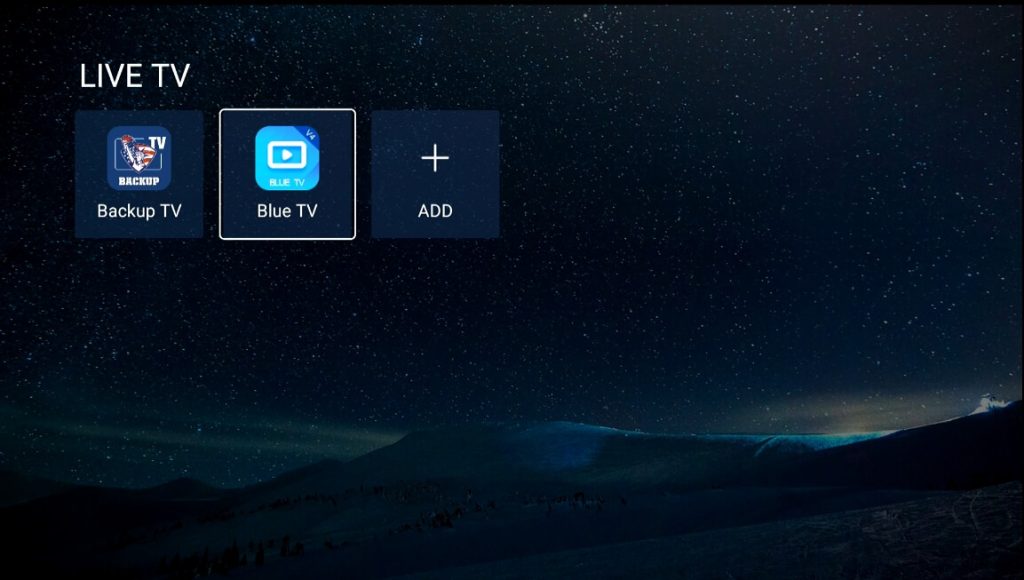
Step 5D – Setup Live TV & Backup TV
Return to the home screen, arrow to LIVE TV, and add the “Blue TV”
“Backup TV” in the category. The same operation for the Blue VOD
and Playback
Step 6 – Add apps to Home Screen Shortcuts
Step 6A – Arrow over to [Add], Select the App. Then Press [Return] to Exit
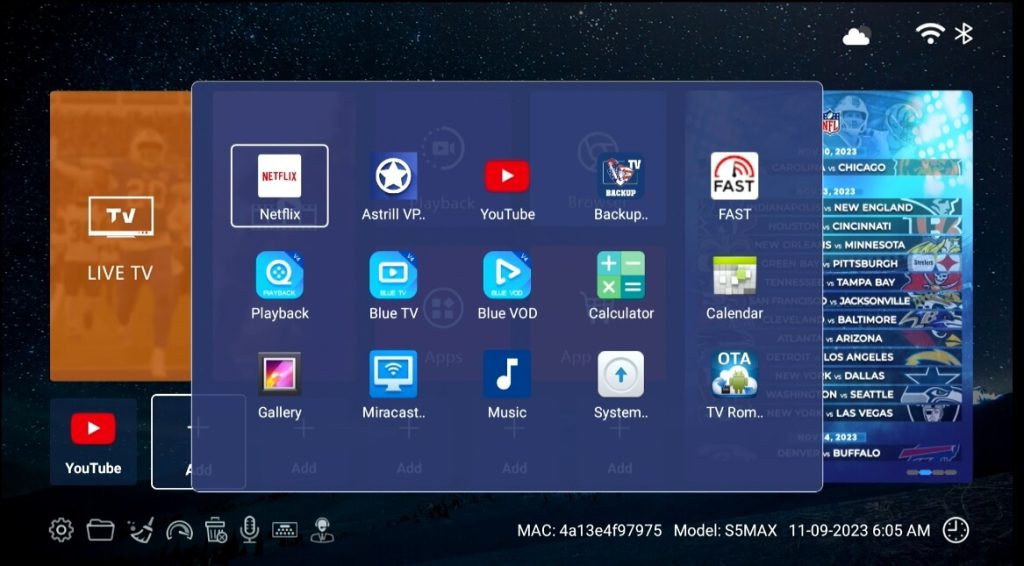
Step 6B – Arrow over the Shortcut, press [MENU] button on remote to delete the shortcut
Voice Command Tips
Tips 1 – Speak “TV”, “VIDEO”( or “VOD”), “Playback” to the remote control to open Blue TV, Blue VOD, and Playback apps
Tips 2 – Search TV channels in Blue TV; Search VOD name, caster, or director in Blue VOD
Tips 3 – Search anything on the home screen with Google Assistant
RELATED POSTS

SuperBox Discount Codes: Limited 2025 – Up to $100 Off Today

Are you on the hunt for the best SuperBox discount codes? Look no further! Enjoy up to $100 off all models for retail customers, includ...
How to Use Time-Shift Function on SuperBox S6 Max and S6 Ultra?
What is Time-Shift function?
Time Shift is a new feature added to the SuperBox S6 series, including the latest SuperBox S6 Max and S...
How to Stop SuperBox Buffering and Freezing: The Ultimate Troubleshooting Guide
Full tutorial and ultimate guide on how to stop SuperBox S4 Pro, S5 Max, S5 Pro buffering and freezing. Applied to all models that loaded Blue TV, Blue VOD.
How to Check SuperBox Streaming Box Authenticity?
SuperBox has continuously delivered the best IPTV boxes and services over the years, staying true to our promise: offering lifetime ser...
How to Turn On/Off Subtitles on SuperBox?
SuperBox offers closed captioning functionality on the Blue VOD app, with English and Spanish subtitles available. Works with all movie...
How to Hard Reset on SuperBox?
If any issues arise with your SuperBox, performing a factory reset can typically resolve the problem.
Method 1: Accessing the ...
How to troubleshoot if Blue Apps not appearing on SuperBox?
Important update: February 19, 2025
Important notice: If the SuperBox App Store does not appear, please enter the website address: &...